
How to Install Github Desktop and Clone a Repository


In this article, we will explain how to install Github Desktop on Windows and clone a repository. This tool will be extremely helpful for teams aiming, among other things, to accelerate desktop application testing.
Note that if you want to use Github Desktop, you need to have Git installed first. You can learn how to do it in our video.
Step 1
- 1. Open Google and search for github desktop.
- 2. Go to the website with the Github distribution kit. You can find the link in the description.
- 3. Click on the Download for Windows button. The downloading will start automatically, and the file will be saved in the specified folder.
- 4. After that, go to the folder with the downloaded file and run it.
- 5. The installation will be automatic.
- 6. Now, let’s try to clone the repository from Github.
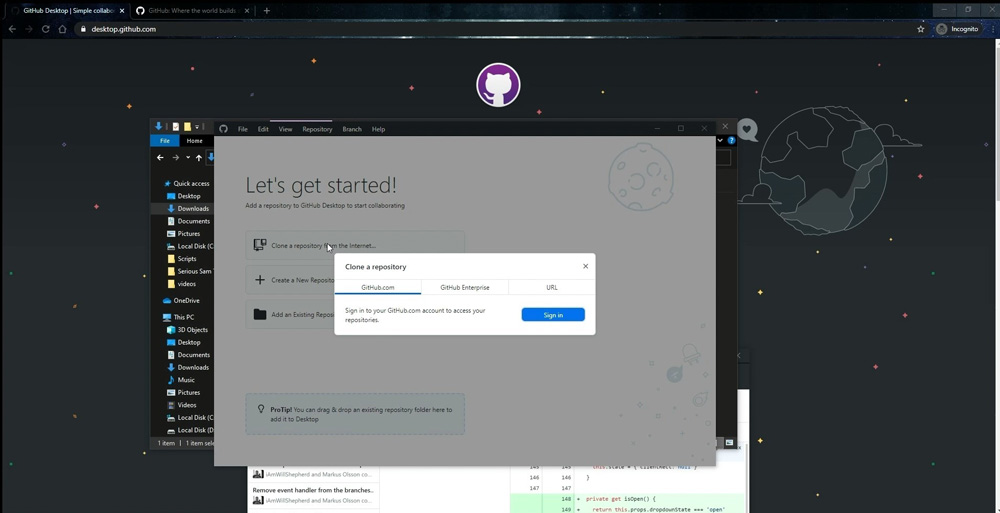
- 7. In the Github Desktop window, click on the Clone a repository from the Internet.
Step 2
- You can log in to your Github account via the popup window Clone a repository and easily use your own repositories. In case you need to download some other repository, go to the URL tab.

Step 3
- Now, you need to paste a link to the repository.
- Let’s use our repository as an example. You can find the link to it in the description.
- 1. The repository is also available through the search functionality on the GitHub website. Just type QA-Madness in the search bar and press Enter. Select Users in the menu on the results page. You will see QA Madness. Click on it to open the account. You can also subscribe to our page using the Follow button.
- 2. Click on the Repositories tab on the account page.
- 3. Select TestProject from the list of repositories.
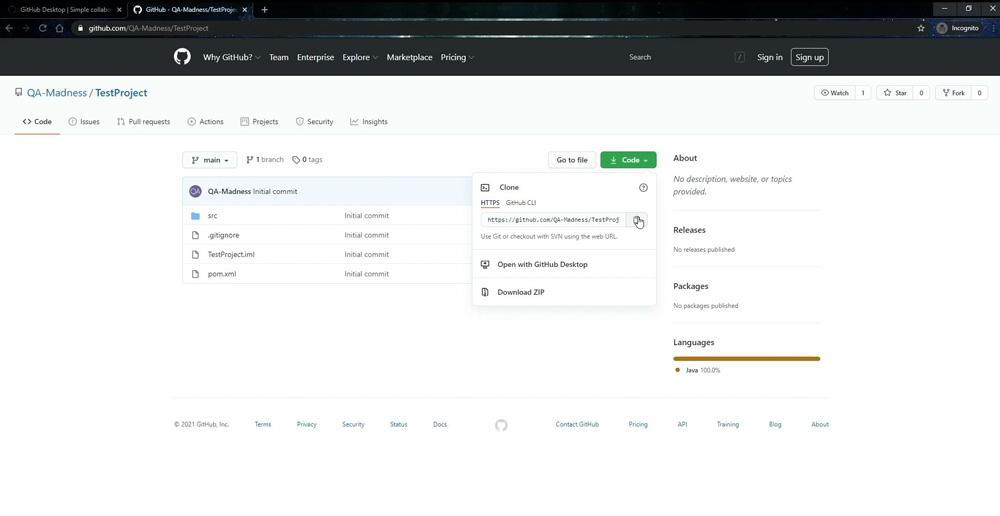
- 4. Click on the Code button on the repository page. You will see the link to the repository in the drop-down box. Click to copy it.
Step 4
- 1. Now, go back to the Github Desktop window.
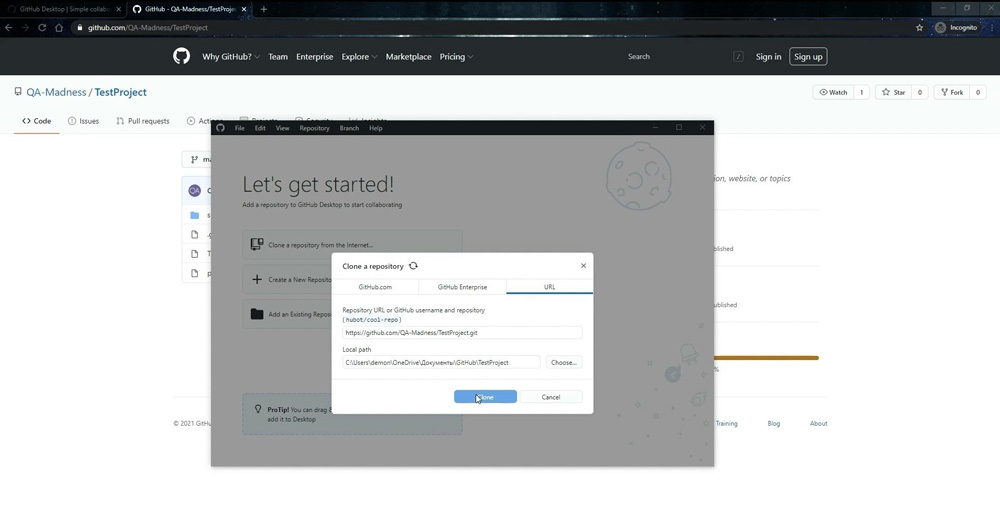
- 2. Paste the copied link in the URL or username/repository bar.
- 3. Select the folder for the download.
- 4. Click on the Clone.
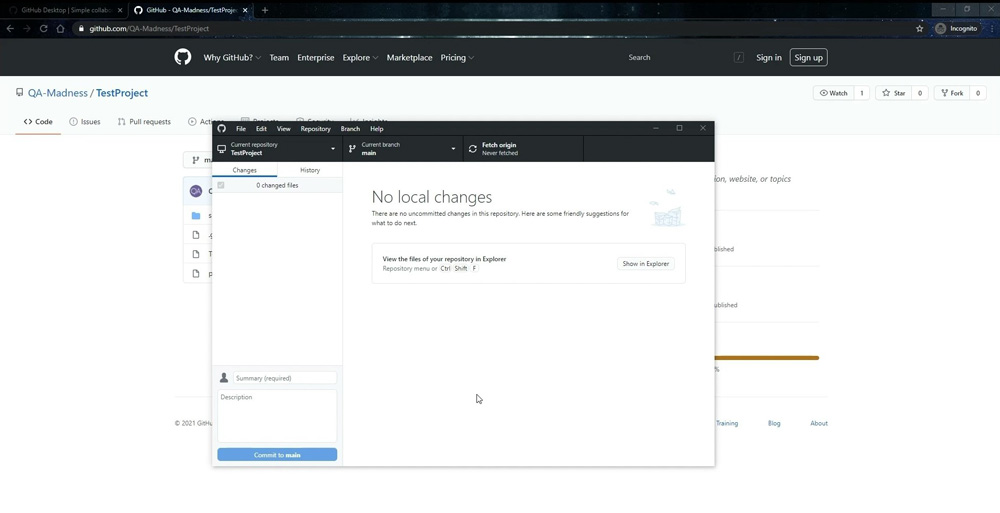
- After this, you can then open the folder with the downloaded repository and make sure it is there.
Optimize Your Testing Today
Ready to level up your quality? From test automation services to full-scale software testing outsourcing, we help you build a product that is extraordinary.
FAQ
Yes. GitHub Desktop requires Git to be installed on your machine. Install Git first, then proceed with the GitHub Desktop setup.
Yes. Use the URL tab in the “Clone a repository” dialog and paste the public repository link directly – no login required.
You choose the local folder during the cloning process. By default, GitHub Desktop suggests a folder in your user directory, but you can change it to any location on your machine.
Yes. GitHub Desktop supports both Windows and macOS. The installation process is similar on both platforms.
GitHub Desktop simplifies version control for testers who prefer a visual interface over command-line Git. It helps QA engineers manage test scripts, automation frameworks, and repository branches without memorizing Git commands.